Mobile Game Settings That Save Battery and Data
Stop your favorite mobile games from draining your battery and data plan. Simple in-game and phone settings that help you play longer on iPhone and Android.
In this guide
Mobile games can be some of the most demanding apps on your phone. Bright screens, high frame rates, constant downloads and background activity all add up. The good news is that a few simple settings can help you play longer and use less data, without ruining the experience.
In-game settings
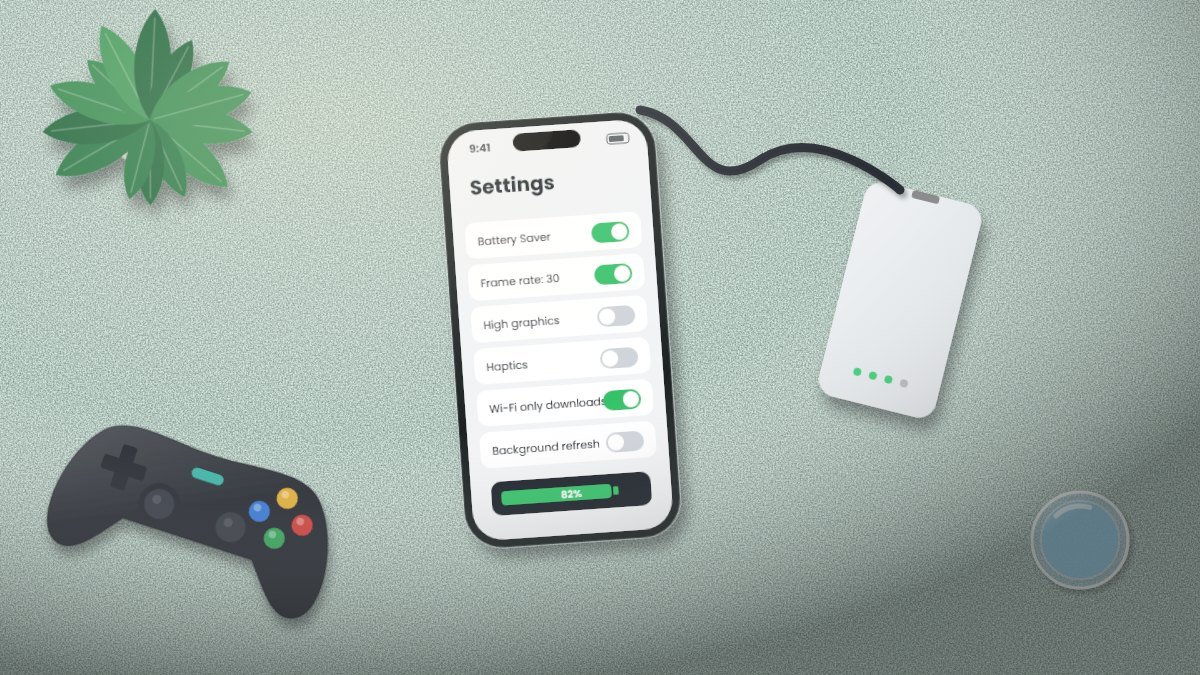
Lower the frame rate
Many games offer frame rate options like 30, 60 or 120 frames per second (fps). Higher frame rates look smoother but use more power. For relaxed games like puzzles and farming sims, 30 fps is often plenty.
Reduce graphics quality
Settings such as "graphics quality," "resolution," "shadows" and "effects" have a big impact on battery life. Choose "low," "medium" or a "battery saver" preset if available.
Turn off vibration and haptics
Haptic feedback is fun but uses a bit of extra power. Turn it off in the game's settings or your phone's system settings.
Download game assets over Wi-Fi
Many games download extra content after installation. Look for an option to download "full resources" or "high-resolution assets" while you are on Wi-Fi, so the game does not use your mobile data later.
Disable auto-play videos and voice chat
If a game has video content, voice chat or live streaming features you do not use, turn them off to save both data and battery.
iPhone settings
- Low Power Mode: Go to Settings > Battery and turn on Low Power Mode. It reduces background activity and some visual effects.
- Screen brightness: Lower brightness, or turn on Auto-Brightness under Accessibility > Display & Text Size.
- Background App Refresh: Settings > General > Background App Refresh lets you turn it off for games that do not need it.
- Cellular data per app: Settings > Cellular lets you turn off mobile data for specific games so they only use Wi-Fi.
- Dark Mode: On iPhones with OLED screens, a darker interface can save some battery.
Android settings
Menu names vary by manufacturer, but these options are usually available:
- Battery Saver: Find it in Settings > Battery. It limits background activity and visual effects.
- Adaptive brightness: Settings > Display.
- Data Saver: Settings > Network & internet. It limits background data for apps.
- App data usage: In each app's settings, you can usually restrict background data.
- Game mode or game dashboard: Many Android phones include a gaming mode that can prioritize battery or performance.
General habits that help
- Use Wi-Fi when you can, especially for online games, updates and downloads.
- Use airplane mode for offline games. It stops your phone from searching for a signal, which can save power in areas with weak coverage.
- Keep your phone cool. Heat reduces battery efficiency. Remove thick cases during long sessions, and avoid playing in direct sunlight or while charging if your phone gets hot.
- Update your games and phone software. Updates often include performance and battery improvements.
- Turn off Bluetooth if you are not using wireless headphones or controllers.
Myths to skip
- Force-closing apps constantly: On modern phones, repeatedly swiping away apps usually does not save battery and can sometimes use more, since apps have to reload from scratch. Close a game only if it is misbehaving.
- Letting your battery drain to zero: Modern lithium-ion batteries do not need to be fully drained. Regular partial charging is fine.
Quick settings checklist
| Setting | Saves battery | Saves data |
|---|---|---|
| Lower frame rate | Yes | No |
| Lower graphics quality | Yes | No |
| Reduce brightness | Yes | No |
| Download assets on Wi-Fi | No | Yes |
| Restrict cellular data per app | No | Yes |
| Low Power or Battery Saver mode | Yes | Some |
| Airplane mode for offline games | Yes | Yes |
The bottom line
You do not need a new phone to play longer. Lower the frame rate and graphics in demanding games, use your phone's battery and data saving modes, download content over Wi-Fi and keep your phone cool. A few minutes of setup can add hours of play time.