Parental Controls for Mobile Games: A Simple Guide
Keep kids safe while they play. A simple guide to parental controls on iPhone, Android and game consoles, including age ratings, purchase approvals and screen time limits.
In this guide
Mobile games can be a fun and even educational part of childhood. But between in-app purchases, chat features and age-inappropriate content, it is smart for parents to set some guardrails. The good news is that every major platform includes free parental controls. This guide walks you through the essentials.
Menu names and features change with software updates, so the exact steps on your device may differ slightly.
Start with age ratings
Before downloading a game, check its rating.
- ESRB ratings: In the United States, the Entertainment Software Rating Board rates many games. Common ratings include E (Everyone), E10+ (Everyone 10 and up), T (Teen) and M (Mature 17+). Content descriptors explain why a game received its rating.
- App store ratings: Apple's App Store and Google Play both show age ratings and content details on every app page. Google Play uses the IARC rating system, which in the U.S. displays ESRB ratings.
Ratings are a helpful starting point, but reading reviews or watching gameplay videos gives you a better sense of what the game is really like.
iPhone and iPad: Screen Time
Apple's controls are found under Settings > Screen Time.
- Set up Family Sharing so you can manage your child's device from your own.
- Content & Privacy Restrictions: Limit apps by age rating, block explicit content and prevent changes to settings.
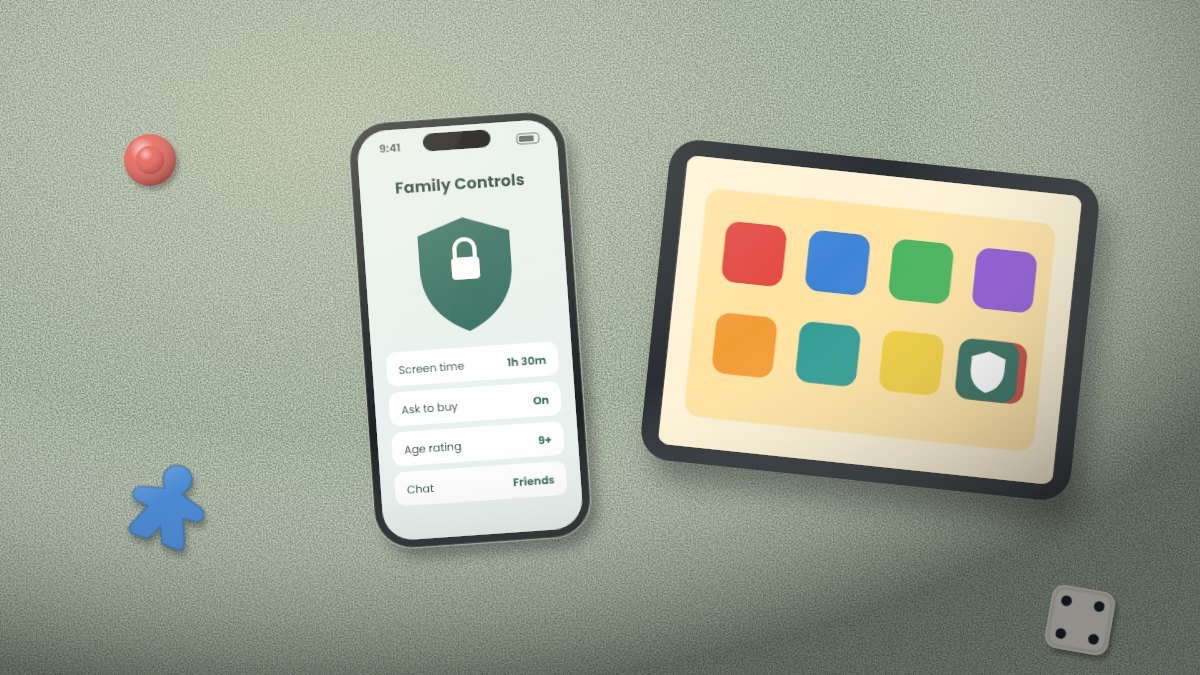
- Ask to Buy: When turned on in Family Sharing, your child must request permission before buying or downloading apps and in-app purchases.
- App Limits: Set daily time limits for games or specific apps.
- Downtime: Schedule times, like bedtime, when only approved apps are available.
- Communication Limits: Control who your child can contact.
Android: Google Family Link and Google Play
- Google Family Link: This free app lets you manage your child's Android device. You can approve or block apps, set daily screen time limits, lock the device at bedtime and see app activity.
- Google Play parental controls: Open the Play Store, go to Settings > Family > Parental controls, and set content restrictions by rating.
- Purchase approvals: In Google Play, require authentication for every purchase, or require parent approval through Family Link.
Game consoles
If your kids also play on consoles, each major platform has its own free tools:
- Nintendo Switch: The Nintendo Switch Parental Controls app lets you set play time limits, restrict games by rating and limit communication.
- Xbox: The Xbox Family Settings app helps you manage screen time, content filters, spending and friend requests.
- PlayStation: Family Management in your PlayStation account lets you set age-based restrictions, spending limits and play time.
In-game settings to check
Many games have their own safety features:
- Chat settings: Turn off chat or limit it to friends only.
- Friend requests: Require approval for new friends.
- Privacy settings: Hide profile information and real names.
- Purchase settings: Some games let you disable in-app purchases entirely.
Talk with your kids
Technology is only part of the answer. Regular conversations help kids make good choices on their own.
- Set clear family rules about when, where and how long kids can play.
- Explain why the rules exist, especially around spending and talking to strangers.
- Play together. It is a great way to understand the games your kids love.
- Encourage them to tell you if anything online makes them uncomfortable.
- Revisit rules as your kids grow older and more responsible.
Parental controls at a glance
| Platform | Main tool | Key features |
|---|---|---|
| iPhone/iPad | Screen Time + Family Sharing | Age limits, Ask to Buy, app limits, downtime |
| Android | Google Family Link | App approvals, time limits, bedtime lock |
| Google Play | Parental controls | Rating-based restrictions, purchase approval |
| Nintendo Switch | Parental Controls app | Time limits, rating restrictions |
| Xbox | Xbox Family Settings app | Screen time, spending, content filters |
| PlayStation | Family Management | Age restrictions, spending limits |
A note on children's privacy
In the United States, the Children's Online Privacy Protection Act (COPPA) places requirements on online services directed at children under 13, including getting parental consent before collecting personal information. Still, it is wise to review privacy settings and avoid sharing personal details in games.
The bottom line
Parental controls are free, flexible and easier to set up than many parents expect. Check age ratings, turn on purchase approvals, set reasonable time limits and adjust chat settings. Combine those tools with open conversations, and your kids can enjoy mobile games safely.